Trees Settings
Customize the Look and Feel of the IDE's Trees
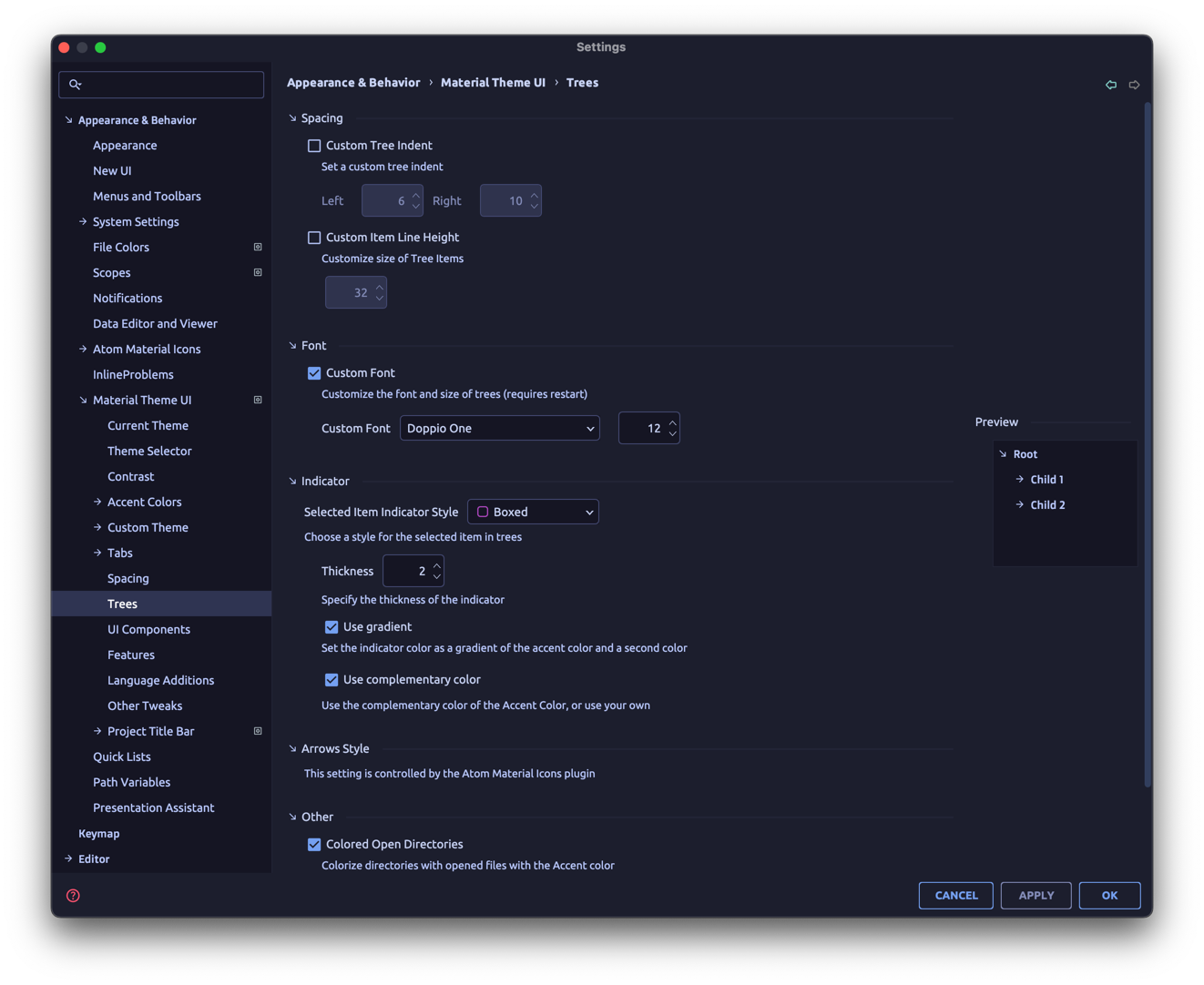
These settings allow you to customize the look and feel of the IDE’s tree views, including spacing, fonts, and indicators.
Trees Settings are grouped into the following categories:
Spacing Settings
Section titled “Spacing Settings”Adjust the spacing of various tree elements to improve readability or maximize screen real estate.
Custom Tree Indent
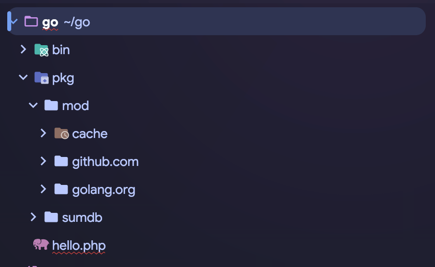
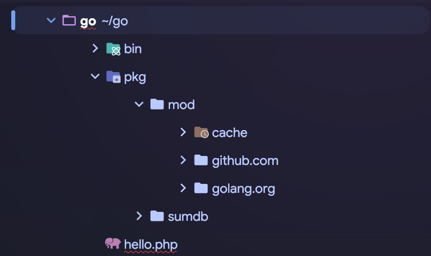
Section titled “Custom Tree Indent”Control the indentation of items within tree views. Whether you prefer a condensed or spacious layout, this setting helps you adjust the visual hierarchy in views like the Project View and Settings View.
Custom item line height
Section titled “Custom item line height”Adjust the vertical spacing between items by controlling the line height. This is particularly useful for improving readability or fitting more items on the screen at once.
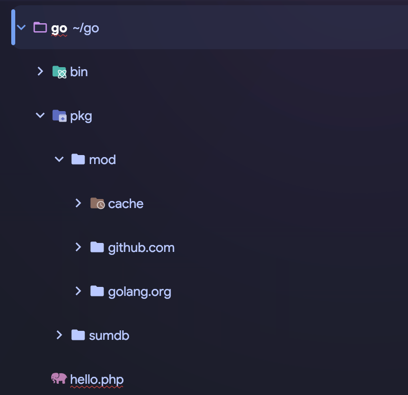
Font Settings
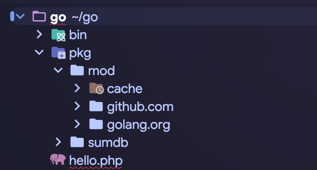
Section titled “Font Settings”Customize the font family and size for tree views independently of the rest of the IDE.
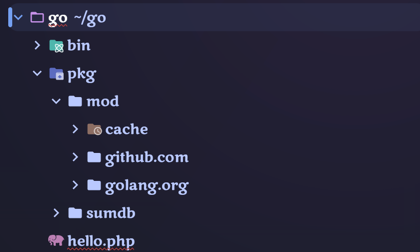
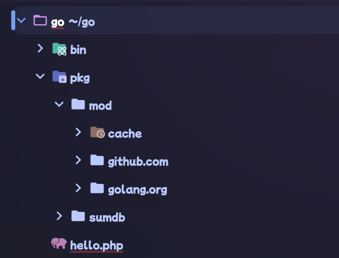
Indicators
Section titled “Indicators”Choose from several indicator styles to highlight the active item in tree views.
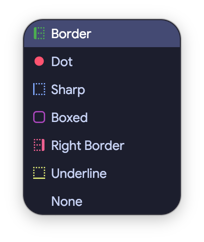
Available styles:
| Style | Screenshot |
|---|---|
| Border (default) |  |
| Sharp Border |  |
| Dot |  |
| Boxed |  |
| Right Border |  |
| Underline |  |
| None | (no indicator) |
You can also adjust the indicator thickness (from 1 to 5).
Additionally, you can enable:
- Use gradient: Sets the indicator color as a gradient between the accent color and a secondary color.
- Use complementary color: Uses the accent color’s complementary color, or a custom one of your choice.


Moreover, you can switch styles from the Actions Panel.
Arrows style
Section titled “Arrows style”Select from a variety of arrow styles for expanding and collapsing tree nodes.
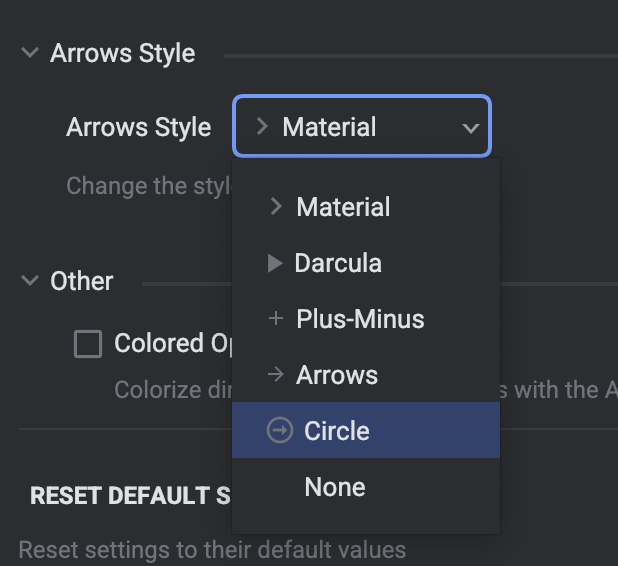
Available styles:
| Style | Screenshot |
|---|---|
| Material (default) | 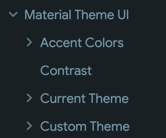 |
| Triangle | 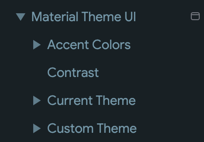 |
| Arrows | 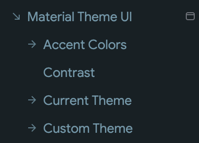 |
| Plus-Minus | 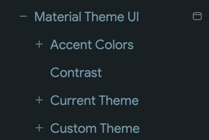 |
| Circle | 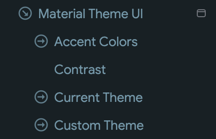 |
| None | (no arrows) |
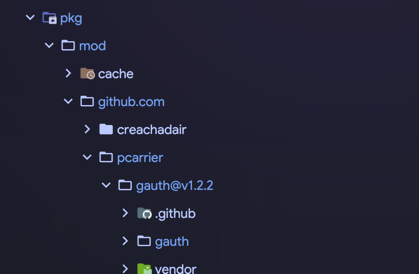
Colored open directories
Section titled “Colored open directories”This setting applies the accent color to directories containing open files in the Project View, making them easier to identify.
Theme
Material
Material (more)
Other
Other (2)
Other (3)