Accent Mode
Emphasize UI components with the accent color
Accent Mode allows you to emphasize specific UI components by applying the accent color more prominently throughout the IDE.
Overview
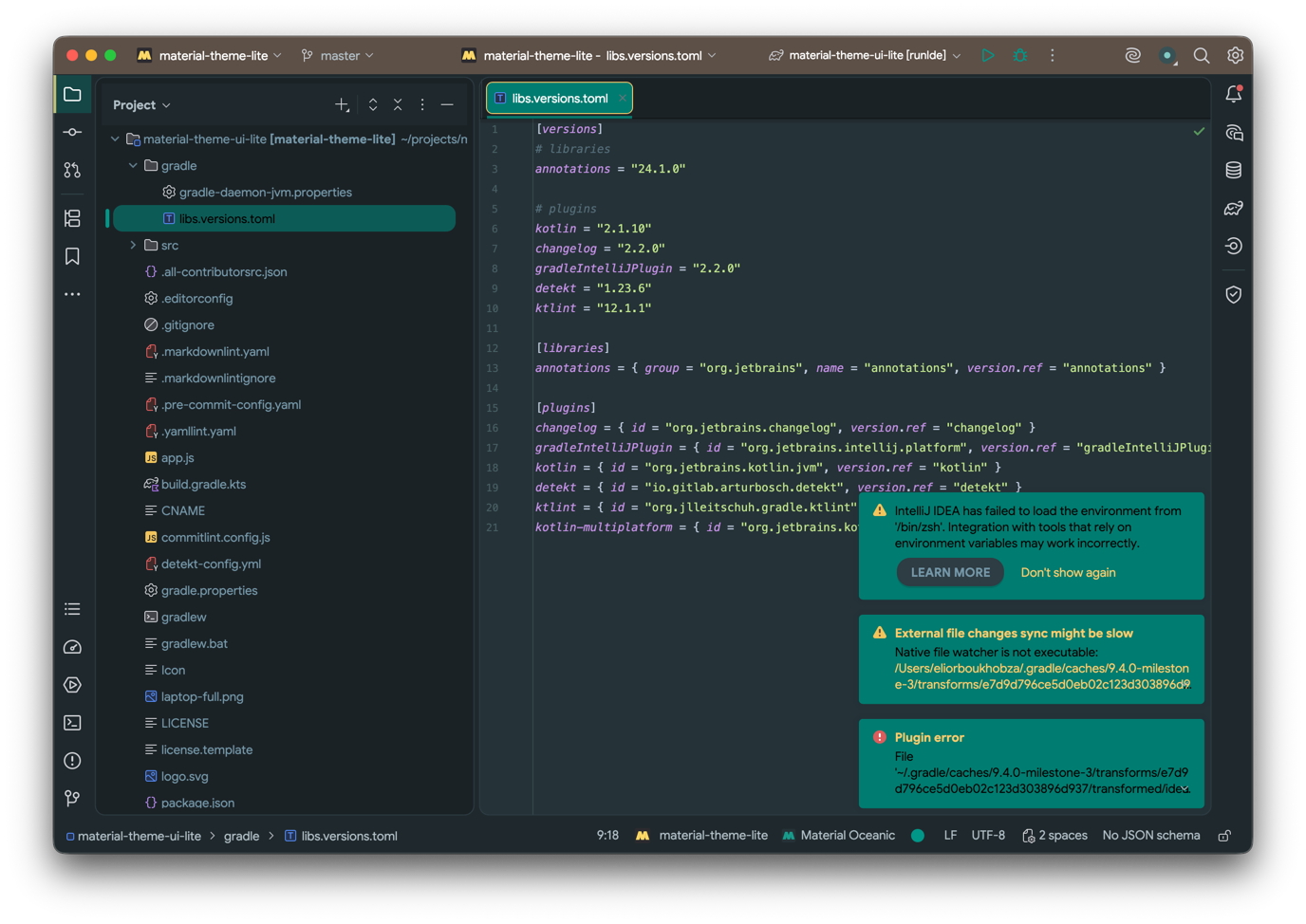
Section titled “Overview”While Accent Colors are used for subtle highlights, Accent Mode takes it further by colorizing entire components—such as buttons, selected tabs, and list items—with the accent color. This ensures that active elements stand out clearly against the background.
You can configure Accent Mode by navigating to Settings → Appearance → Material Theme UI → Accent Mode.
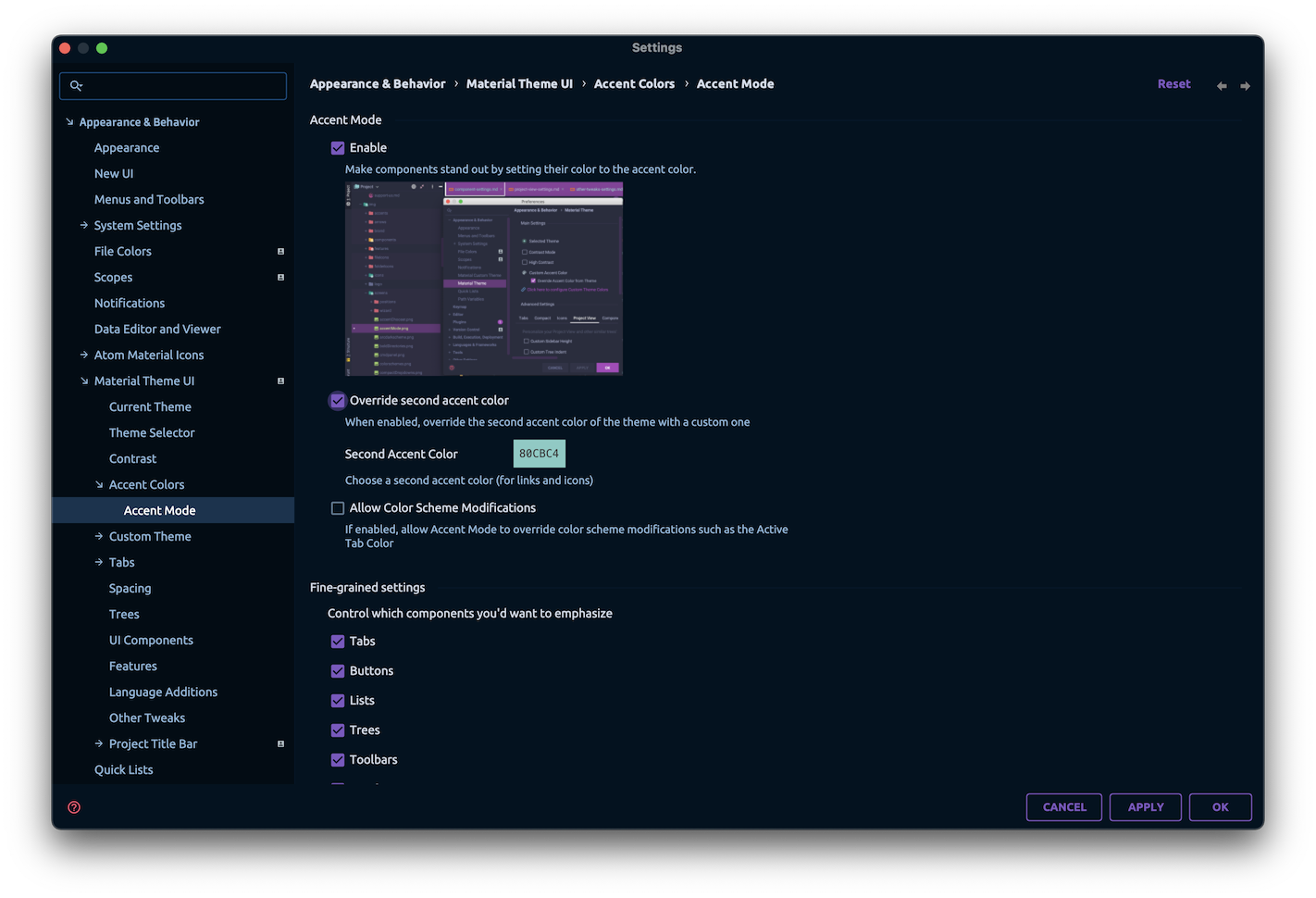
Settings
Section titled “Settings”Enable
Section titled “Enable”When enabled, Accent Mode applies the accent color to various UI components to make them stand out.
Override second accent color
Section titled “Override second accent color”By default, the plugin uses a secondary accent color defined by the theme for certain elements like links and icons when Accent Mode is active. Enabling this option allows you to override this with a custom color of your choice.
Second Accent Color
Section titled “Second Accent Color”Choose a custom color to be used as the secondary accent color. The second accent color takes the place of the accent color in elements such as links, tab indicators, etc., to stand out on elements that are painted with the primary accent color.
Allow Color Scheme Modifications
Section titled “Allow Color Scheme Modifications”When enabled, Accent Mode can override specific color scheme settings, such as the Active Tab Color, to ensure consistency across the UI. This allows the accent color to be applied to elements that are usually controlled by the editor’s color scheme.
Fine-grained Control
Section titled “Fine-grained Control”Accent Mode can be applied globally or restricted to specific UI components. This allows you to customize exactly which elements should reflect the accent color.
Available components include:
- Buttons: Primary buttons in dialogs and toolbars.
- Tabs: The currently selected editor and tool window tabs.
- Lists: Selected items in lists and dropdowns.
- Trees: Selected items in the Project View and other tree structures.
- Toolbars: Selected or toggled elements within toolbars.
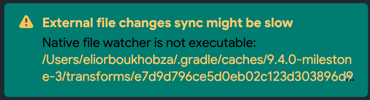
- Notifications: Colorized background or accents of IDE notifications.
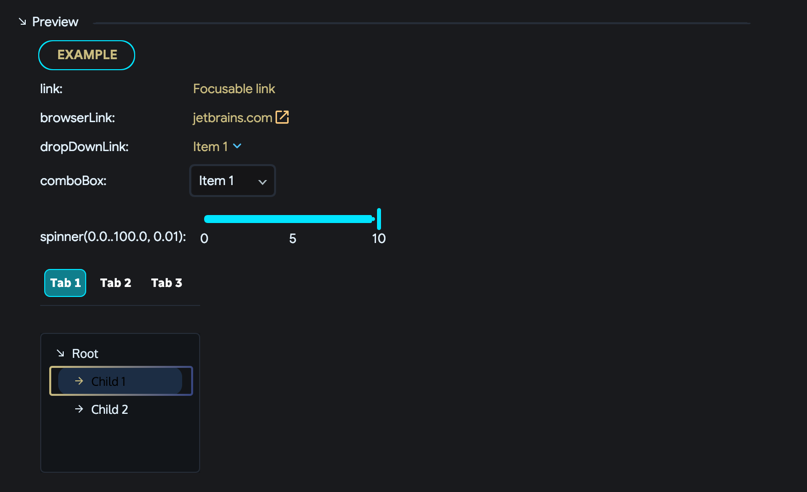
Preview
Section titled “Preview”The settings page includes a Preview section where you can see how your Accent Mode configuration will look before applying it.
Theme
Material
Material (more)
Other
Other (2)
Other (3)