Peek
Quick code preview and editing without losing context
Peek & Edit Definition is a powerful feature that allows you to explore and modify your code without losing your current context.
Inspired by the VSCode feature of the same name, it enables you to peek at definitions, make quick edits, and navigate your codebase more efficiently, all within the same editor window.
Overview
Section titled “Overview”Traditional code navigation often requires jumping between files, which can break your focus. Peek solves this by opening a small, secondary editor window — either as a popup or inline — that displays the definition of the symbol under your cursor.
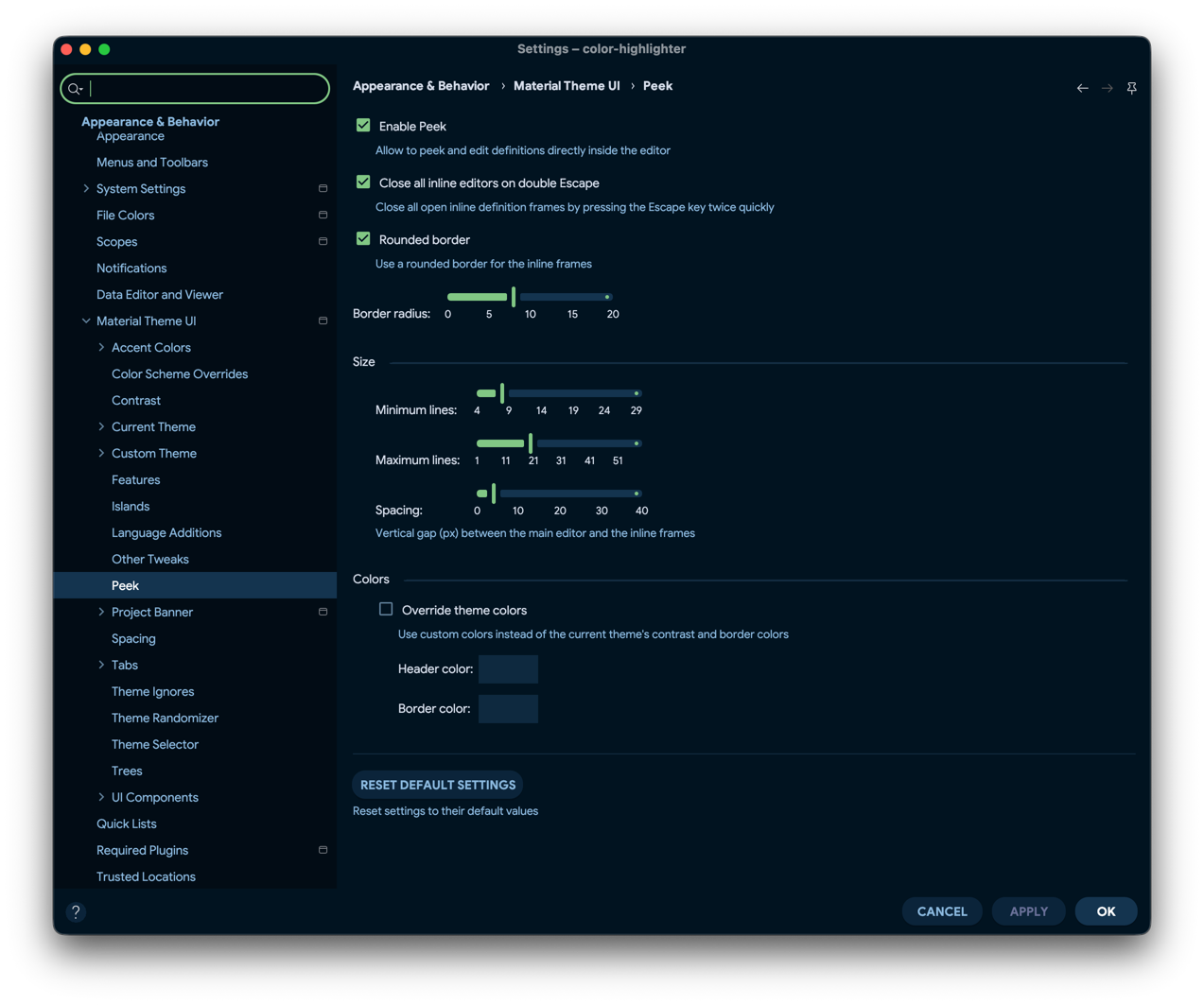
You can configure Peek by navigating to Settings → Appearance → Material Theme UI → Peek.
Peek Modes
Section titled “Peek Modes”There are two main ways to use Peek:
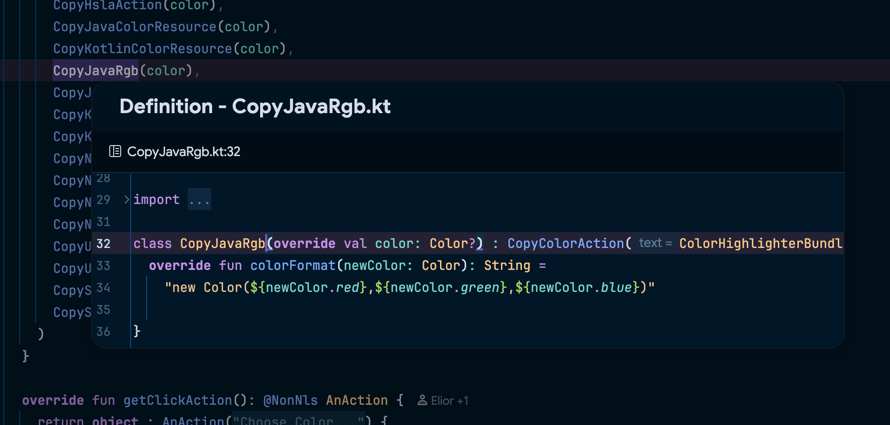
Peek & Edit Definition (Popup)
Section titled “Peek & Edit Definition (Popup)”This mode opens the definition in a separate, editable popup window. It’s ideal for quick lookups and small edits where you want to keep the main editor fully visible.
To open it, simply place your cursor on a symbol and press Ctrl + Shift + P (or your configured shortcut). You can also press
Alt + Shift + Click on the symbol to open the Peek window directly.
Peek & Edit Definition (Inline)
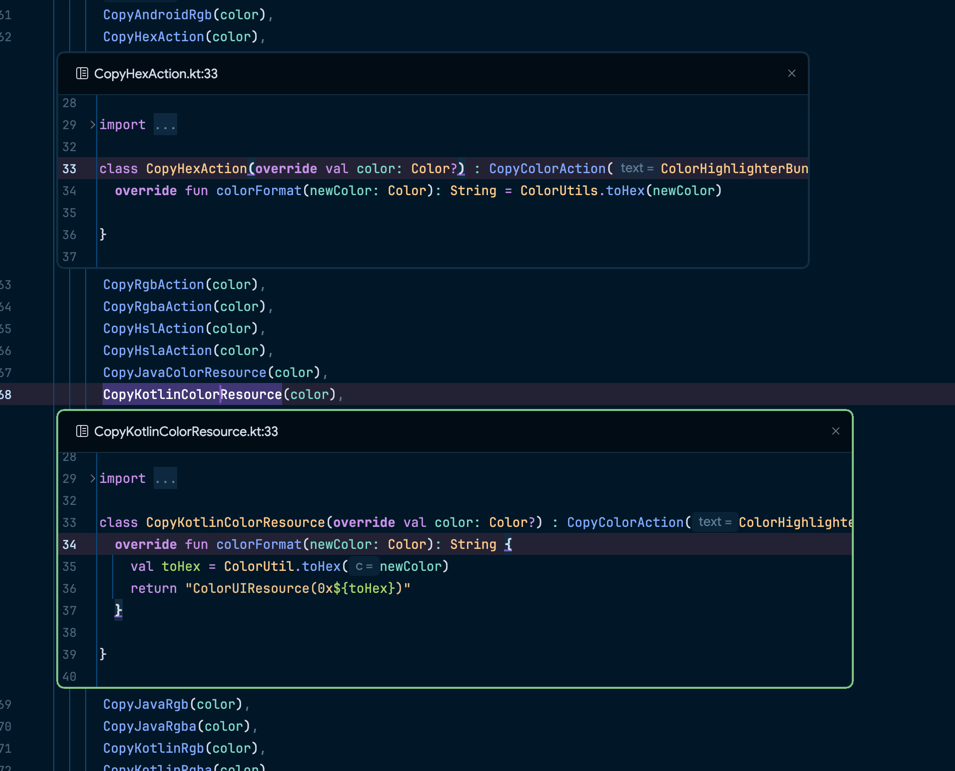
Section titled “Peek & Edit Definition (Inline)”In this mode, the definition is embedded directly within your current editor, shifting the surrounding code to make room. You can add as many inline Peek windows as you like, allowing for a more integrated and seamless editing experience.
To open it, simply place your cursor on a symbol and press Ctrl + Shift + I (or your configured shortcut). You can also press
Shift + Click on the symbol to open the Peek window directly.
To close them, you can either click the close button on the Peek window or press Escape twice if you have that option enabled in the
settings.
Appearance Settings
Section titled “Appearance Settings”You can customize the look and feel of the Peek window to match your preferences and theme.
Rounded Borders
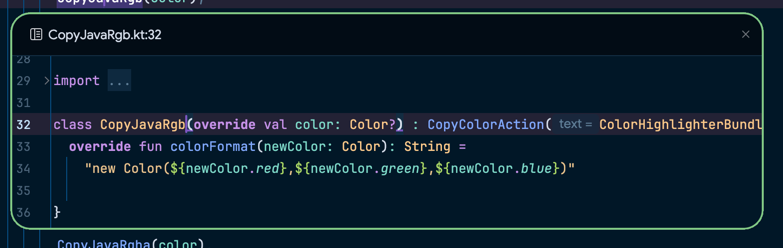
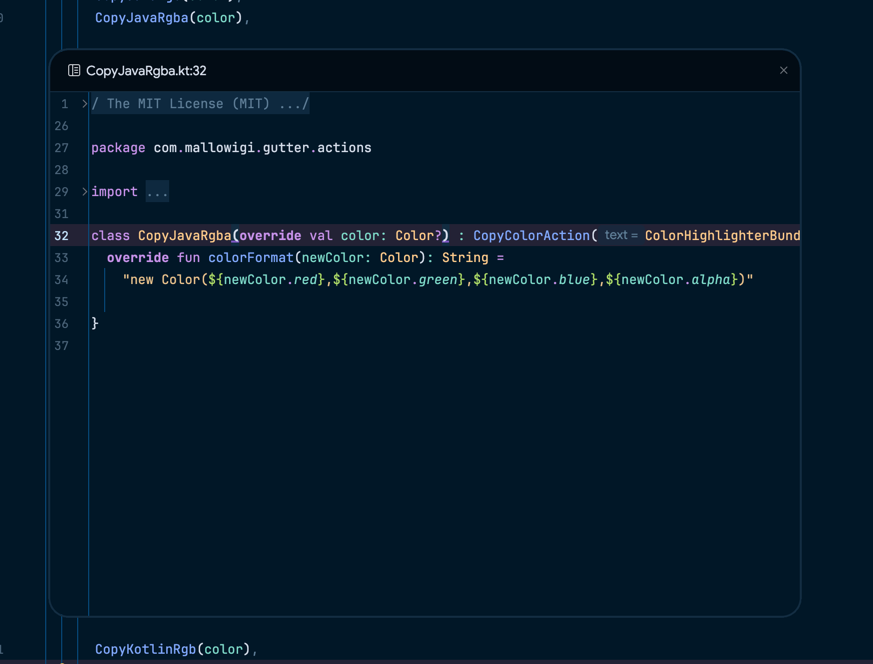
Section titled “Rounded Borders”To match the modern aesthetic of the Material Theme, you can enable and adjust rounded borders for the Peek window.
Custom Colors
Section titled “Custom Colors”Peek allows for fine-grained control over its color palette. You can customize the header background and the border colors to your tastes.
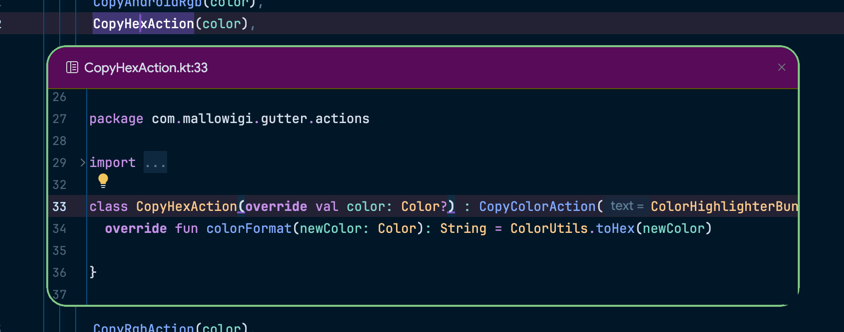
Padding and Layout
Section titled “Padding and Layout”The Min Lines and Max Lines settings let you control the size of the popup by specifying the minimum and maximum number of lines displayed. You can adjust these values to ensure that the Peek window fits your workflow, whether you prefer a compact view or a more spacious layout.
The Spacing setting determines the space between the content and the edges of the Peek window, allowing you to create a more comfortable reading experience.
Lastly, the Custom Width option lets you define a specific width for the Peek window, giving you complete control over its dimensions.
The width will be clamped to the visible editor area, ensuring you won’t need to scroll horizontally. Set it to 0 to take the full width.
Behavior
Section titled “Behavior”Replace Cmd/Ctrl Click
Section titled “Replace Cmd/Ctrl Click”This option will hijack the default behavior of the Cmd/Ctrl + Click action, replacing it with the Peek Inline feature instead of the Navigate to Definition action.
This is useful if you prefer staying in the same context as much as possible, rather than jumping to a new file. You can still navigate to the definition by using the F4 key or the Navigate to Definition action.
Double Escape to Close
Section titled “Double Escape to Close”By default, you can close the Peek window by pressing Escape twice. However if you prefer to close it manually, you can disable this
option in the settings.
Theme
Material
Material (more)
Other
Other (2)
Other (3)