Theme Color Overrides
Customize any theme's colors in-place via settings or tool window
Theme Color Overrides lets you customize any theme’s colors in-place, persisting your changes for that specific theme.
Overview
Section titled “Overview”Previously, you could only preview the colors of the current theme. Now you can edit them directly, either through the Settings page or the new Tool Window. Any property listed in the Theme Ignores will be ignored, no matter what color you assign to it.
You can:
- Override a theme color that will be persisted for that specific theme.
- Select a color from the current theme’s palette or pick a new one.
- Filter properties by name or color.
- Reset individual properties or all properties to their defaults.
- Import and export your theme color overrides to share with others.
Settings Page
Section titled “Settings Page”The Theme Colors Override settings page provides a full-fledged interface for customizing any theme’s colors.
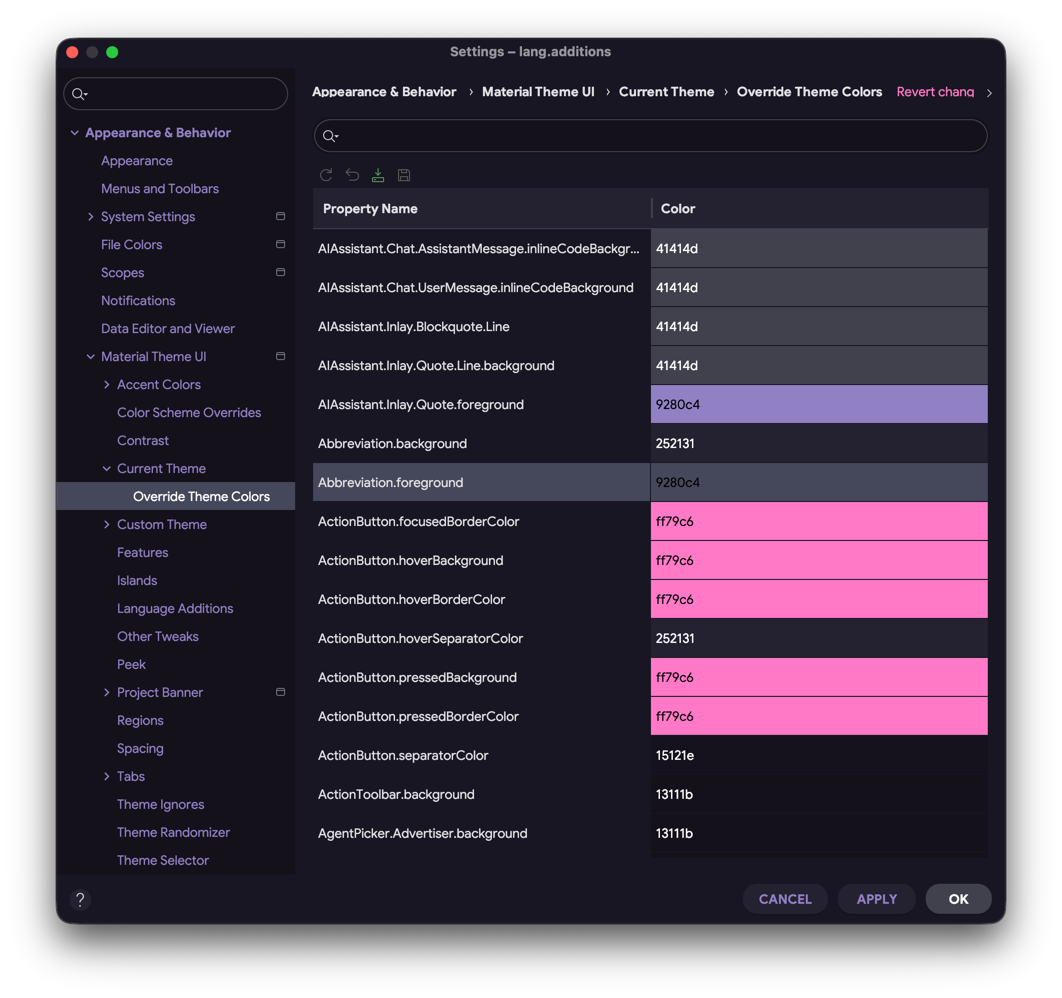
Navigate to Settings → Appearance → Material Theme UI → Current Theme to access the override table.
Tool Window
Section titled “Tool Window”In addition to the settings page, the feature is now available as a Tool Window for quick access without leaving your workspace.
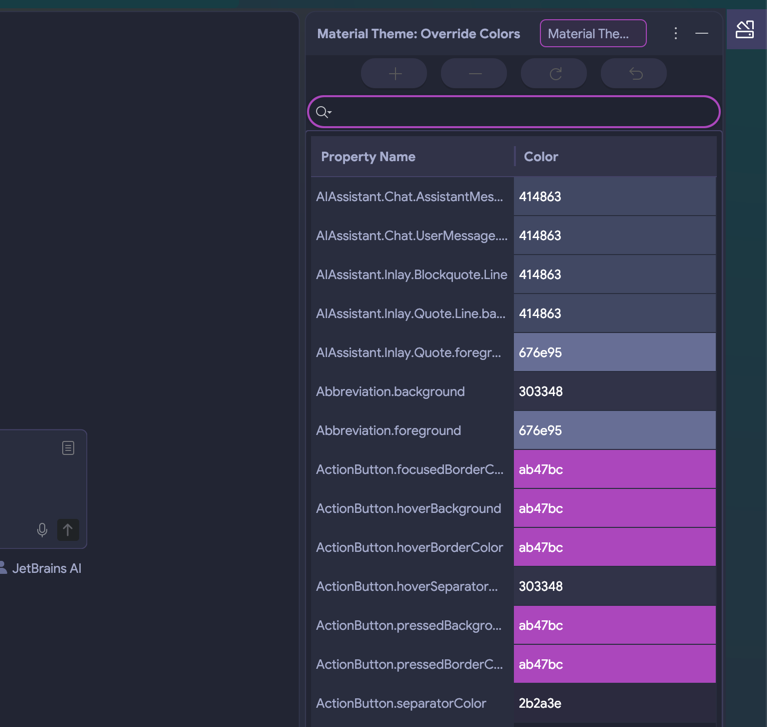
The Tool Window gives you a preview of the current theme’s colors and allows you to edit them in-place.
Color Picker
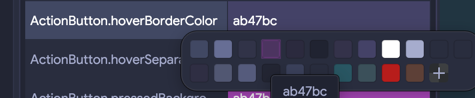
Section titled “Color Picker”Upon clicking on a color in the override table, you will be presented with a custom color picker that allows you to pick a color from the current theme’s colors, or pick a new one.

Filtering & Resetting
Section titled “Filtering & Resetting”You can filter out properties by name or color to quickly find the property you want to modify.
- Filter by name: Type in the search field to narrow down the list of properties.
- Filter by color: Click on a color to filter properties matching that value.
- Reset a property: Click the reset button next to a property to restore its default value.
- Reset all properties: Restore all overrides to their defaults with a single action.
Adding and Removing Custom Properties
Section titled “Adding and Removing Custom Properties”If a property is not present in the current theme, you can add a custom override for it. Conversely, you can remove manually-added overrides that are no longer needed.
License Note
Section titled “License Note”This feature is only available for Premium and Custom Theme license owners. You can purchase a premium license for the plugin or a dedicated license for this feature via the following link: Material Theme Custom Theme.
Theme
Material
Material (more)
Other
Other (2)
Other (3)