License Information
License details for Material Theme UI plugins.
Manage your Material Theme UI license and subscription status directly within the IDE settings.
License Overview
Section titled “License Overview”View details about your Material Theme UI license under the plugin settings. This page displays your current subscription status, account details, and installed plugin version.
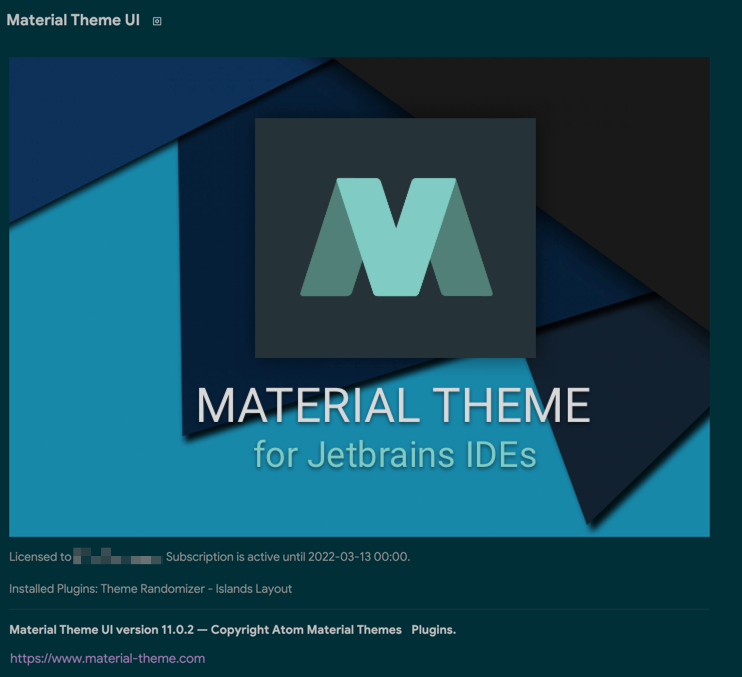
The following information is available on this page:
- Plugin Version: The currently installed version of the plugin.
- License Type: Indicates whether you are using the Free or Premium version.
- Account Information: Details of the account associated with the license.
- Expiration Date: The date when your current subscription or evaluation period ends.
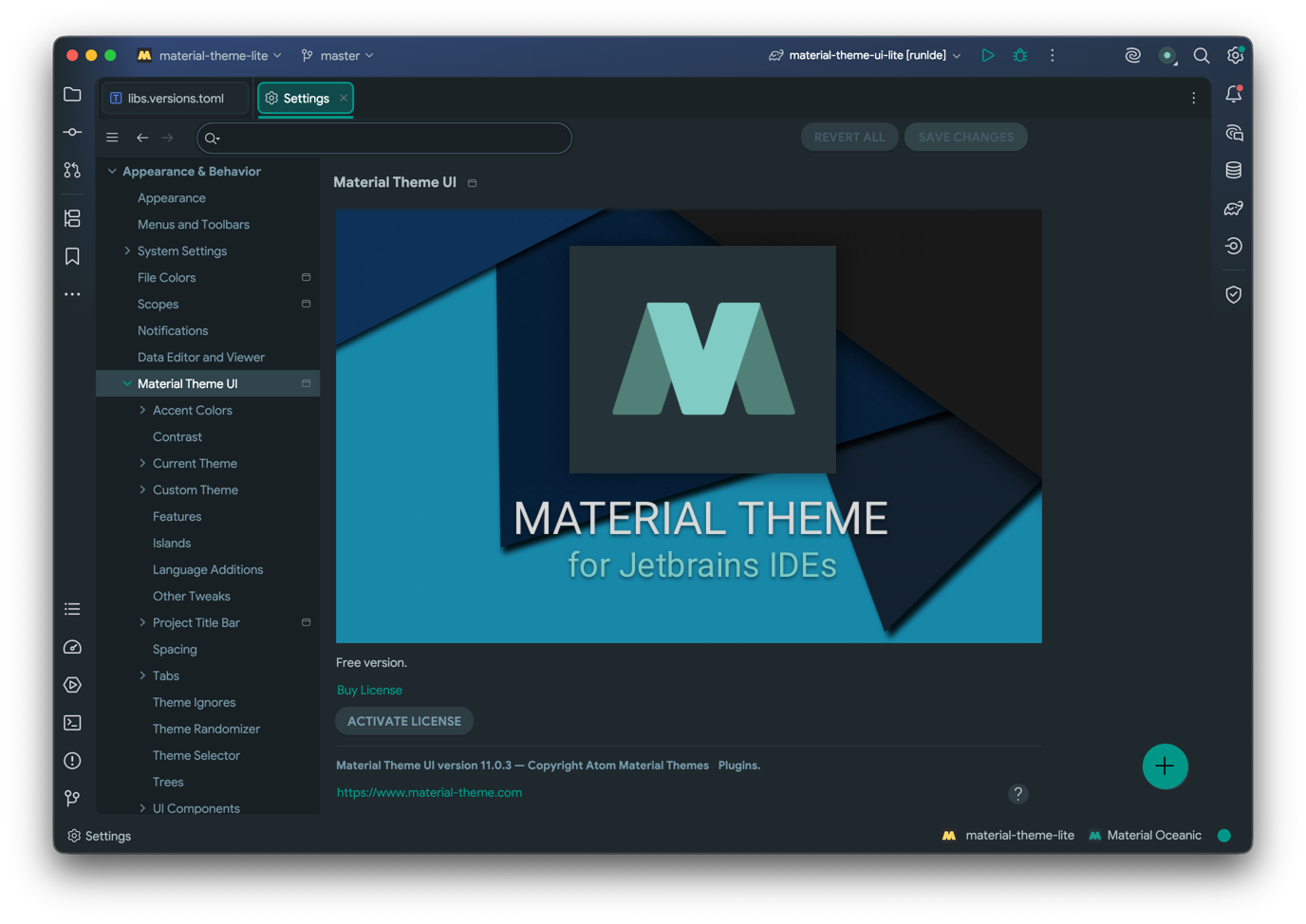
If you’re on the free plan, this page will also provide a link to purchase a premium subscription.
Subscription Models
Section titled “Subscription Models”Material Theme UI offers two primary subscription models:
- Free: Provides access to core features at no cost.
- Premium: Unlocks the full suite of Material Theme UI features.
Individual Feature Plugins
Section titled “Individual Feature Plugins”Alternatively, Free version users can purchase individual premium features via Material Theme UI Add-on Plugins. This allows for a more tailored experience by paying only for specific functionality.
Available add-on plugins include:
- Material Theme High Contrast: Unlocks the High Contrast feature.
- Material Theme Extras: Unlocks Tabs, Trees, UI Components, Spacing, and other premium customization options.
- Material Theme Project Frame: Unlocks Project Frame customization.
- Material Theme Custom Theme: Unlocks Custom Theme and Light Custom Theme creation.
- Material Theme Language Additions: Unlocks Language Additions.
- Material Theme Randomizer: Unlocks the Theme Randomizer.
- Material Theme Islands: Unlocks Islands customization features.
Purchasing an add-on plugin while using the Free version grants access to that specific feature without requiring a full Premium subscription.
Purchased add-on plugins are also listed on the License Information page.
License Activation
Section titled “License Activation”After purchasing a license, you will typically be prompted to manage your subscription upon starting the IDE. If this prompt does not appear, you can manually activate your license by navigating to Help → Manage Subscriptions.
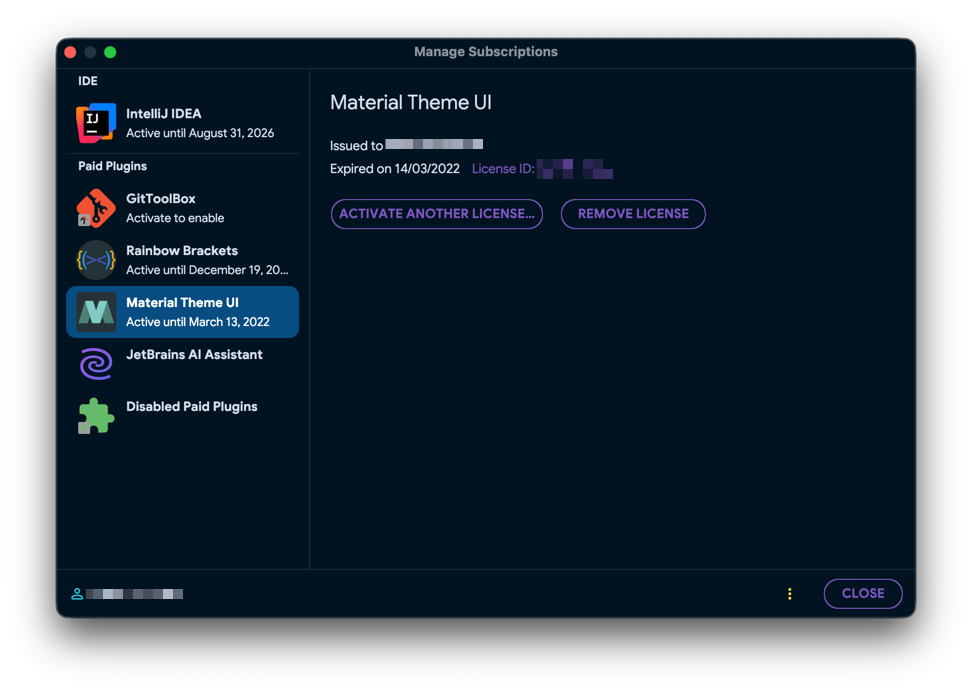
Alternatively, open the Material Theme Toolbar and select Activate License to open the activation dialog.
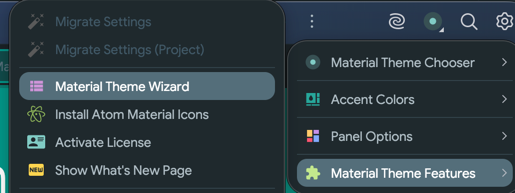
If you have any issues activating your license, please contact support.
Theme
Material
Material (more)
Other
Other (2)
Other (3)