Excluded Files Colors
Learn about File Colors, Scopes and Excluded files
Introduction
Section titled “Introduction”JetBrains IDEs are excellent for projects of any scale. However, as projects grow, navigating through open files, the project tree, or search results can become increasingly difficult.
To address this, JetBrains IDEs offer a feature called File Colors. It allows you to assign custom colors to specific groups of files based on patterns.
Common examples include:
- Excluded Files
- Tests
- Erroneous files
- Build Files
- Logs
- etc.
You can even colorize specific folders representing different modules or parts of your project. As a result, files in these categories will have a distinct background color, significantly reducing the time spent searching and navigating through the use of color-based identification.
This feature is supported in several areas, including:
- Project Tree
- Editor Tabs
- Find in Files Dialog
- Search Everywhere dialog
- Navigate to File/Class/Symbol dialog
- And more…
Configuration
Section titled “Configuration”JetBrains editors come with at least two pre-configured File Colors:
- Excluded files: Files marked as excluded are omitted from indexing, searching, and navigation, which significantly improves
performance. Examples include
node_modules,logs,vendors,gradle, etc. - Tests: Typically identifies the tests directory.
Note: You can mark a directory as excluded by right-clicking it and selecting Mark Directory as….
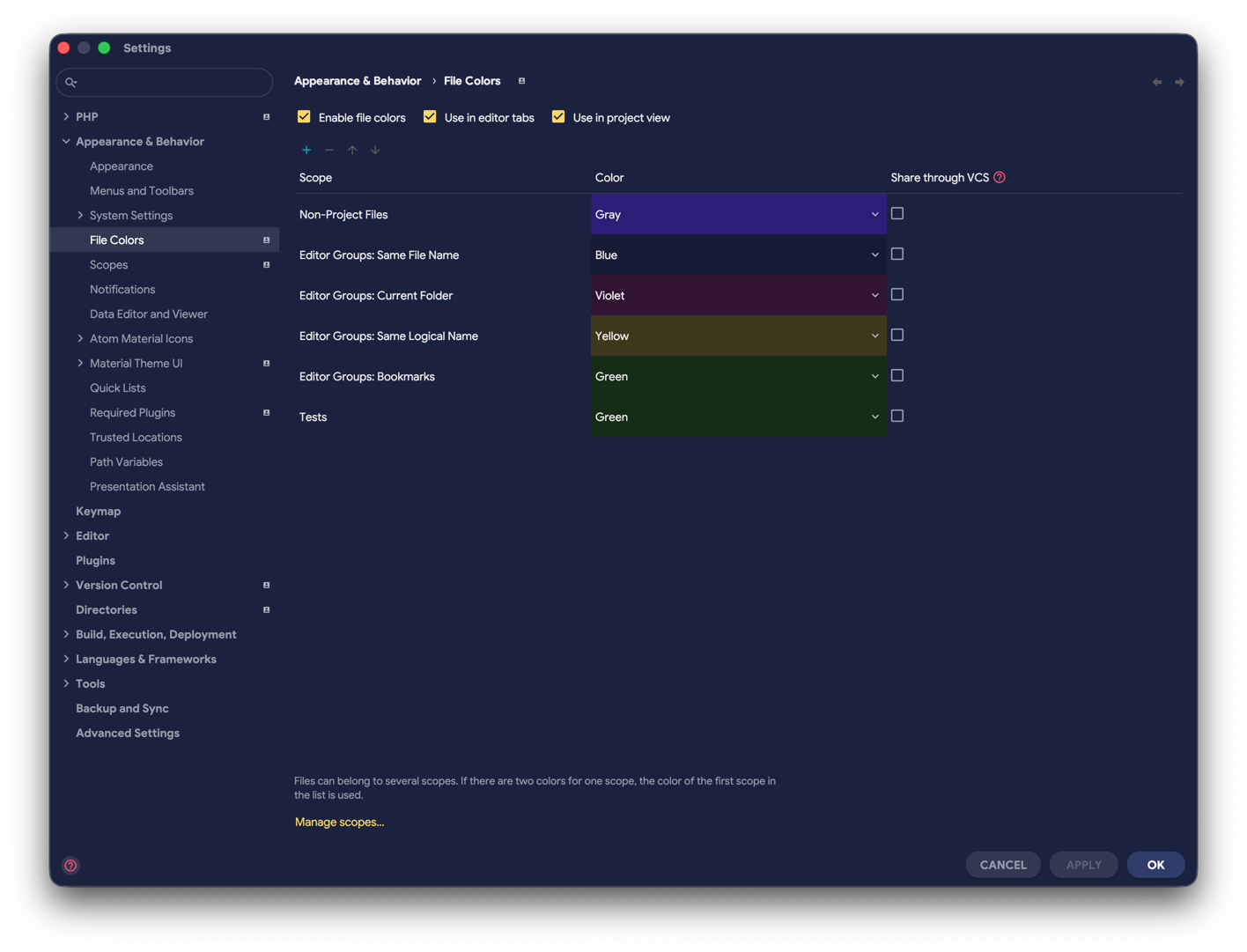
Depending on the IDE, other File Colors might also be pre-installed. You can find them under
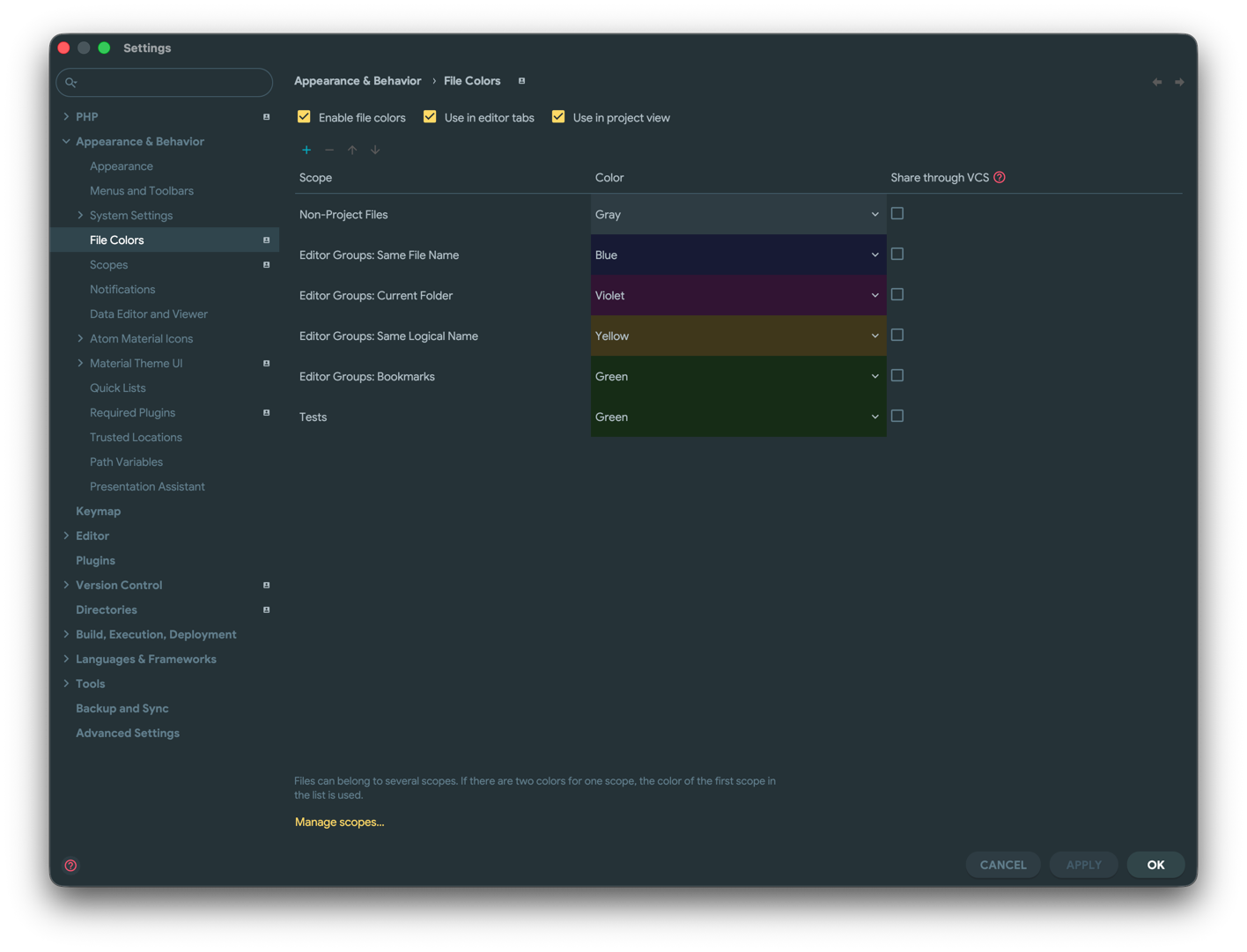
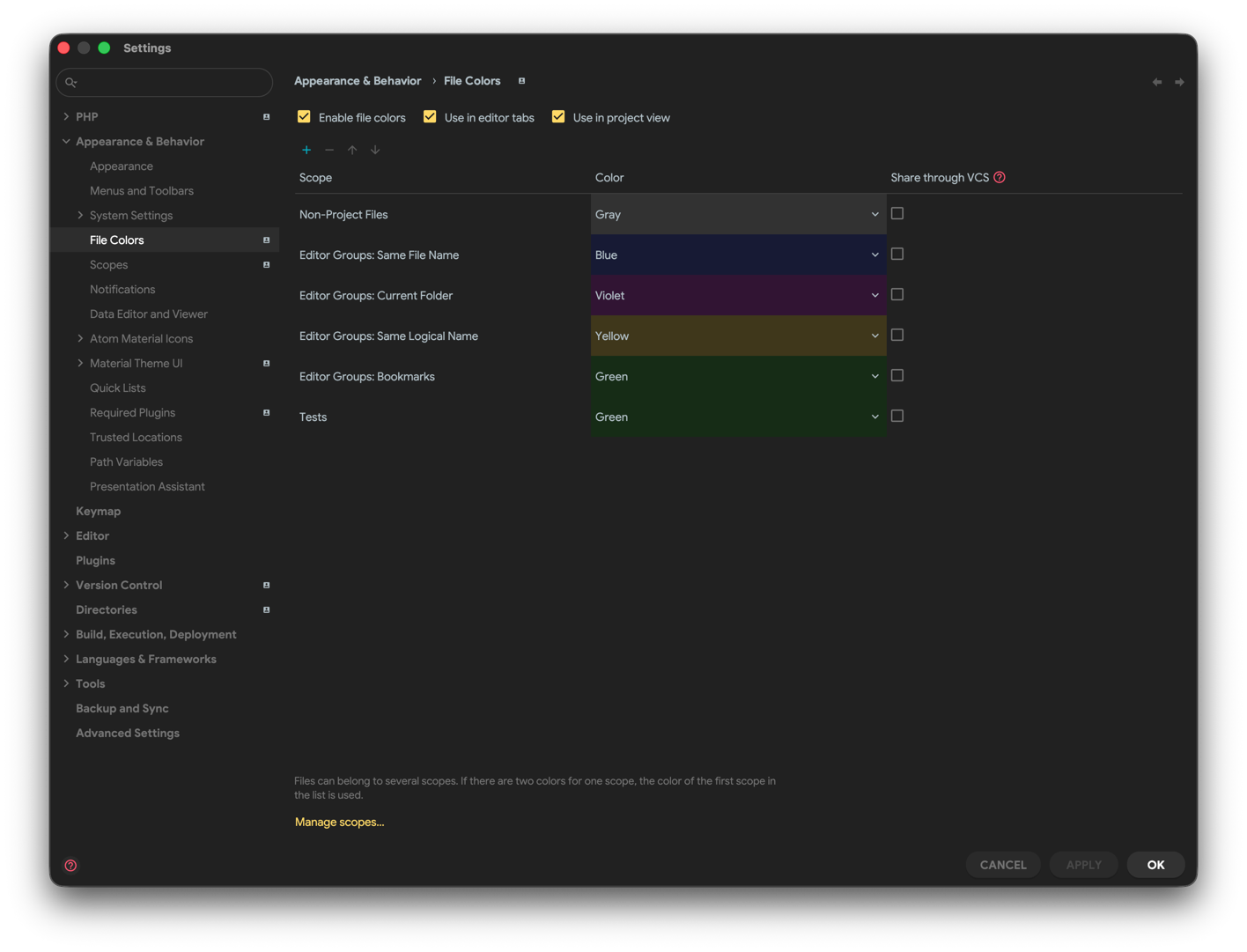
Settings/Preferences → Appearance & Behavior → File Colors.
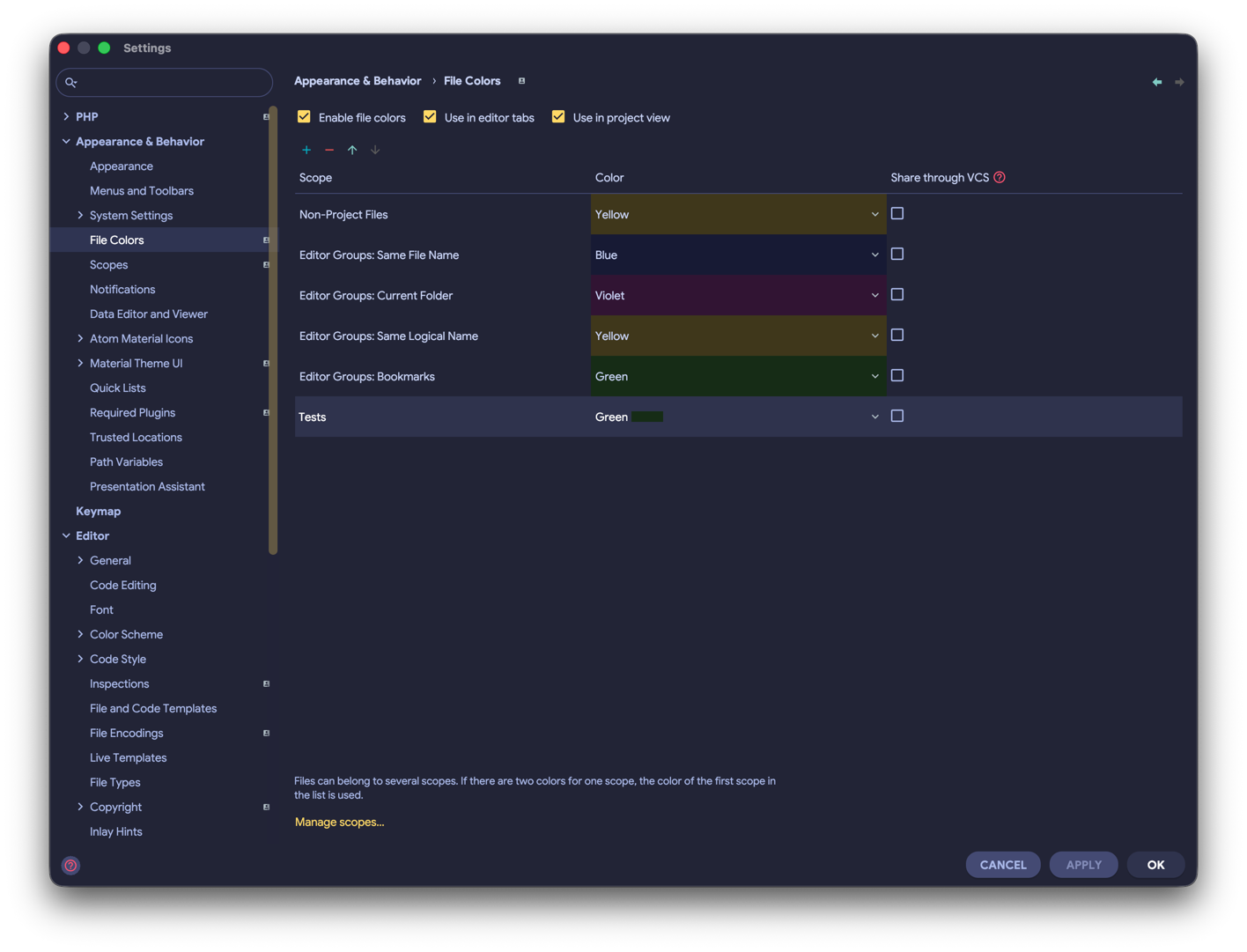
From this settings screen, you can add new colors, share them across projects, disable them for specific components, or adjust their priority.
Scopes
Section titled “Scopes”While the pre-bundled options are a great start, you can create custom file colors using Scopes. Scopes allow you to define pattern-based rules to include or exclude specific directories.
To set up a custom color:
- Create a Scope and define its rules.
- Add your new scope to the File Colors list.
- Move it to the top of the list to ensure it isn’t overridden by other colors.
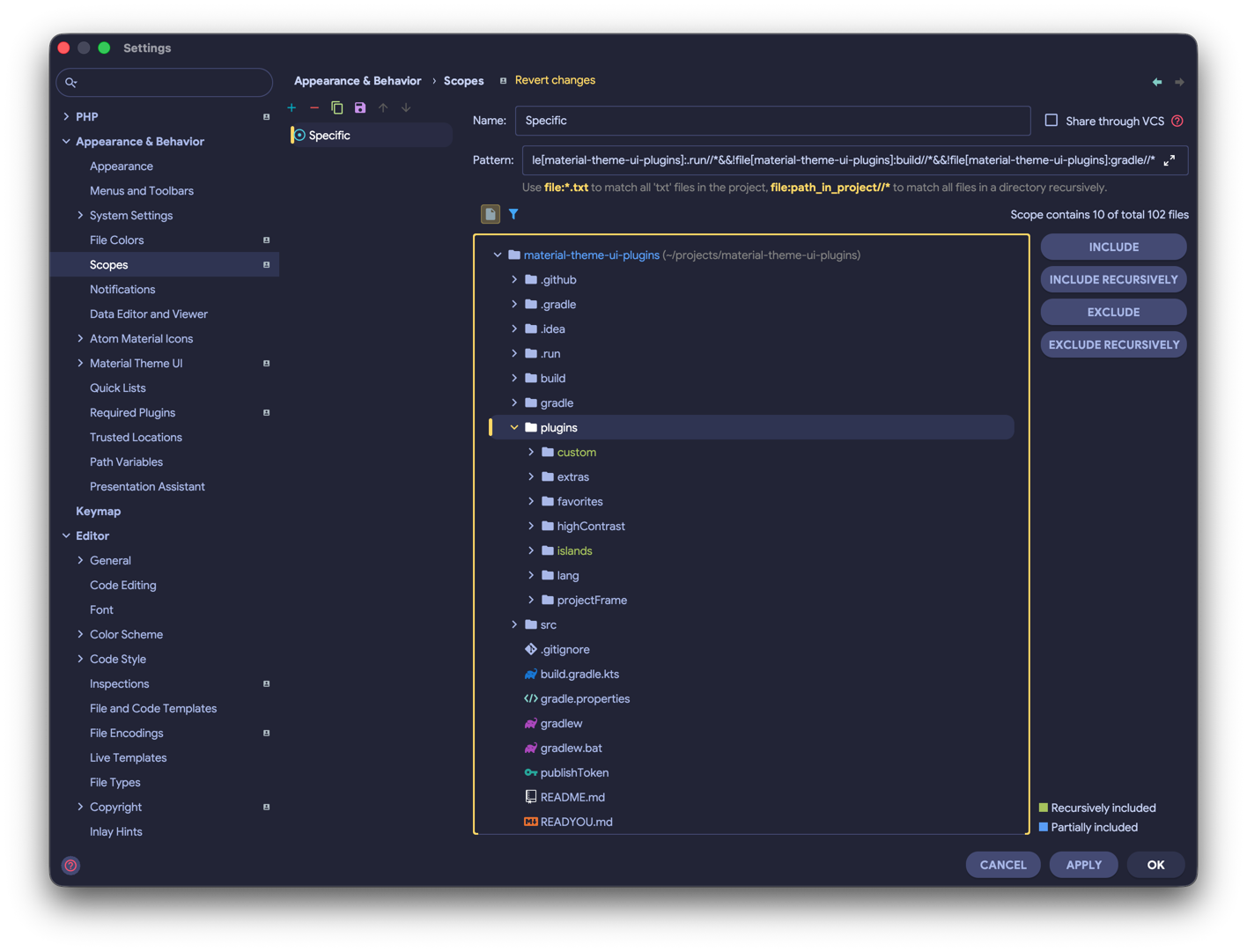
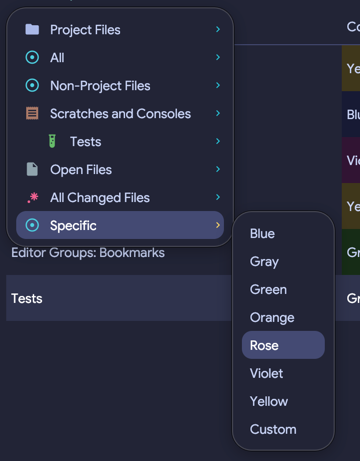
For more information, visit the official JetBrains documentation on File Colors.
Material File Colors
Section titled “Material File Colors”Theme-Specific File Colors
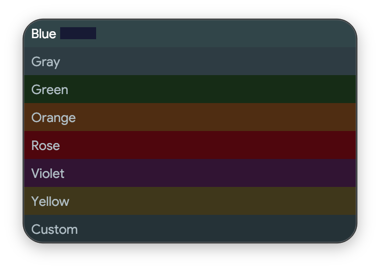
Section titled “Theme-Specific File Colors”Themes can override default file colors to provide a palette that matches their specific aesthetic.
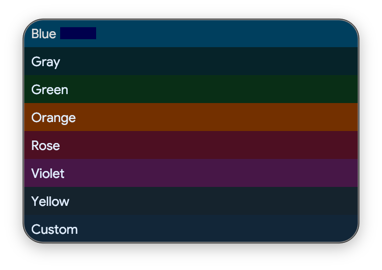
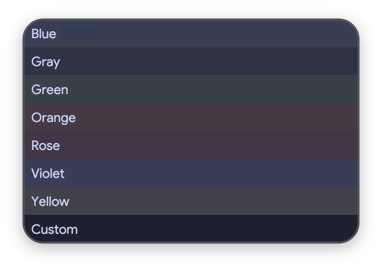
Similarly, the themes included with this plugin provide their own optimized File Colors.
Excluded Files Theme Color
Section titled “Excluded Files Theme Color”In addition, the plugin includes a specific color designed for Excluded Files.
Known as the Excluded Files Color in the theme nomenclature, this is typically a dimmed variant of the background color. It is automatically injected into the “Gray” File Color, making it ready for use with excluded files.
Color reference
Section titled “Color reference”Theme
Material
Material (more)
Other
Other (2)
Other (3)