File Status Colors
Customize File Status Colors
These settings allow you to customize the file status colors on a per color scheme basis.
Introduction
Section titled “Introduction”File Status Colors is a built-in feature of the IDE that colorizes filenames according to their status. These colors are applied across various parts of the IDE, including:
- Project View
- Editor Tabs
- Recent Files
- Navigate to File/Class/Symbol
- and more…
A file’s “status” refers to its state within a Version Control System (VCS), such as Git, SVN, or Mercurial. This includes states like modified, newly added, deleted, ignored, or conflicted.
Originally, these color settings were found within the Color Schemes section of the settings, allowing designers to define their own file status colors. However, JetBrains later moved these settings to the application level, reasoning that UI colors should be separated from editor-specific settings.
While this change organized the settings differently, many users still prefer to have these colors change automatically with their theme. For instance, a theme creator might want Modified Files to appear in cyan for a specific dark theme but use a different color for a light one.
Because the IDE now treats these colors as application-level settings rather than scheme-specific ones, they are typically coupled to the global Look and Feel (e.g., Light or Dark). The Material Theme UI plugin restores the ability to customize these colors on a per-scheme basis.
Custom File Colors
Section titled “Custom File Colors”These settings are located in a dedicated section within the Color Schemes settings rather than the main Material Theme settings.
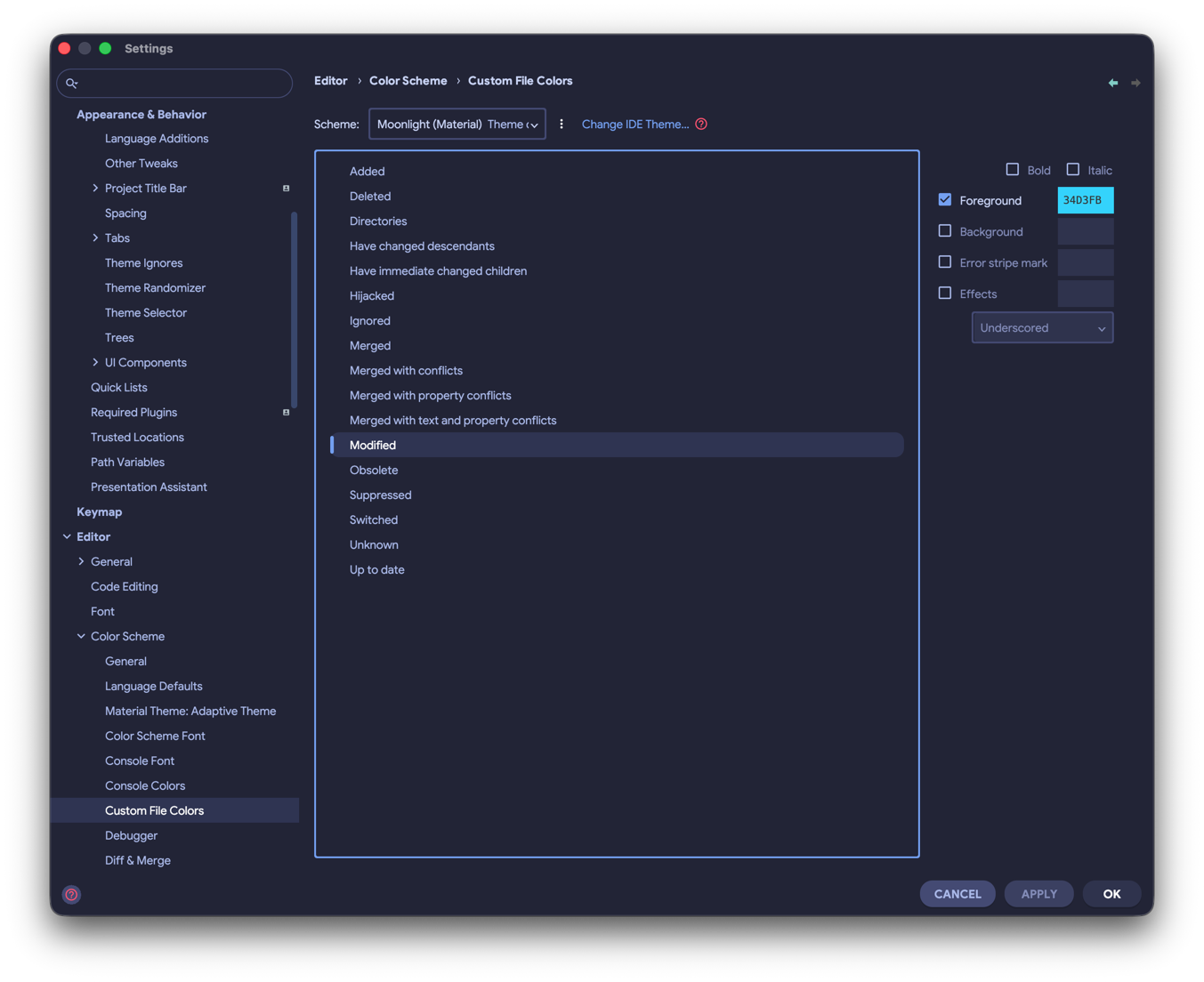
Editing these colors will directly update the values found in Settings > Version Control > File Status Colors.
The following table describes the available file statuses and their default Material Theme colors:
| Title | Material Color | Explanation |
|---|---|---|
| Added | #C3E88D (green) | New file added to the repository in active changelist |
| Added outside | #C3E88D (green) | New file added to the repository in non-active changelist |
| Changelist conflict | #d5756c (red) | File modified in two changelists |
| Copied | #C3E88D (green) | File copied (Mercurial only) |
| Deleted | #808080 (gray) | File removed from the repository |
| Deleted from FS | #808080 (gray) | File deleted from the file system |
| Directories | #FCFCFA (default text) | Directory color (depends on Styled Directories) |
| Have changed descendants | #80cbc4 (cyan) | Directory has recursively changed files (not used) |
| Have immediate changed | #80cbc4 (cyan) | Directory has immediate changed descendants (not used) |
| Hijacked | #ffcb6b (yellow) | File is modified without editing (Perforce only) |
| Ignored | #ab7967 (brown) | File is ignored |
| Ignored (ignore plugin) | #ab7967 (brown) | File is ignored by the .ignore plugin |
| Merged | #C792EA (violet) | File is modified by a merge |
| Merged with conflicts | #d5756c (red) | File has conflicts |
| Modified | #80cbcf (cyan) | File modified in active changelist |
| Modified outside | #82AAFF (blue) | File modified in non-active changelist |
| Obsolete | #ffcb6b (yellow) | File is obsolete (SVN only) |
| Renamed | #80CBC4 (cyan) | File renamed (Mercurial only) |
| Switched | #C792EA (violet) | File from another branch (SVN only) |
| Suppressed | #546E7A (comments color) | File from a Virtual File System (like Scratches) |
| Unknown | #d5756c (red) | Unversioned file |
| Up to date | none (default tree color) | File unchanged |
Directories
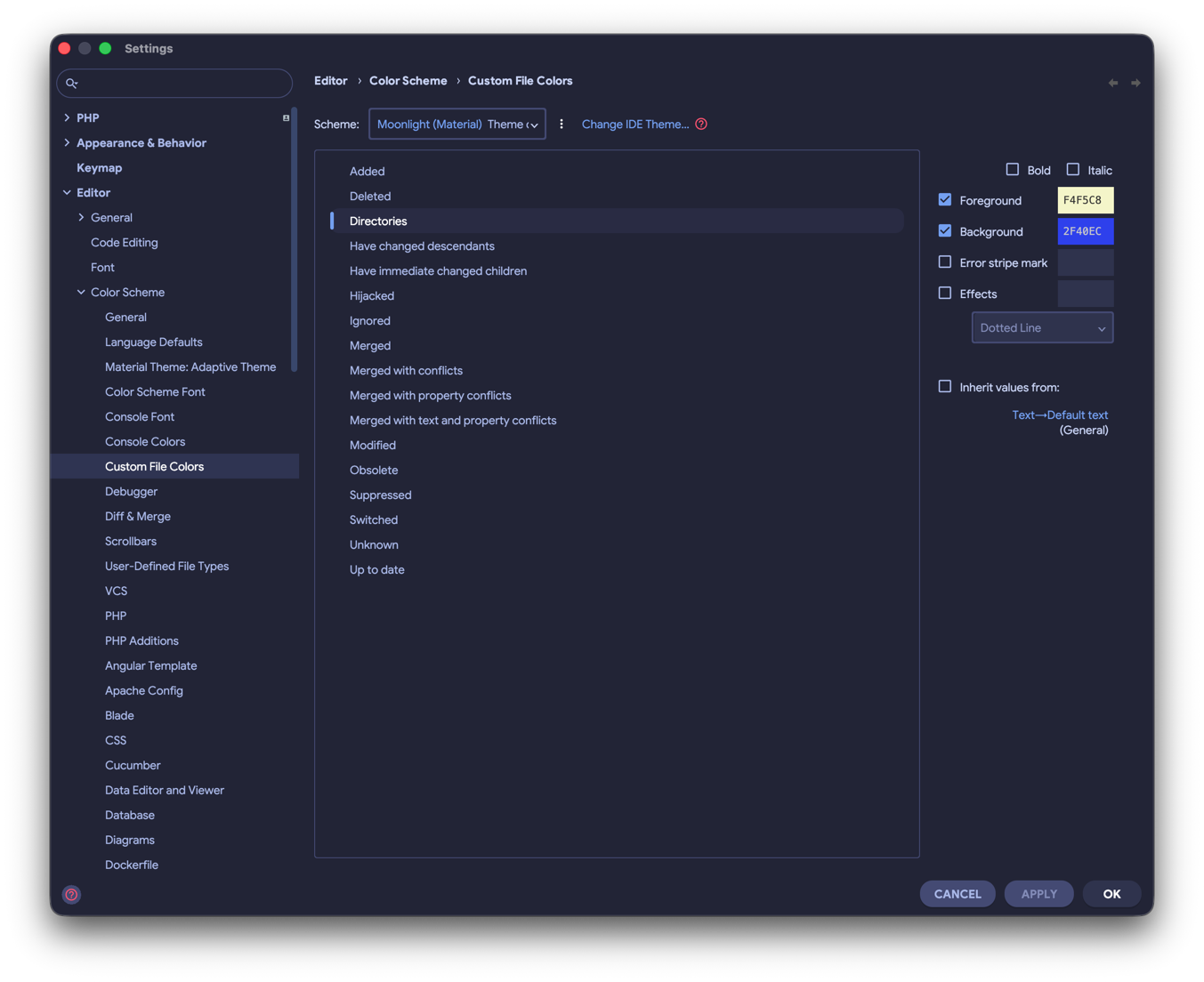
Section titled “Directories”In the Custom File Colors section, you can find a property called Directories. This allows you to set a custom color for directories, helping to differentiate them from regular files.
This setting requires the Styled Directories option to be enabled.
Advanced Customization
Section titled “Advanced Customization”Color scheme designers can manually implement this feature by adding the following keys to their .icls or .xml scheme files. If you previously defined these colors in the IDE before the feature was moved, they should still work when using this plugin.
<colors> <option name="FILESTATUS_ADDED" value="C3E88D"/> <option name="FILESTATUS_COPIED" value="C3E88D"/> <option name="FILESTATUS_DELETED" value="808080"/> <option name="FILESTATUS_HIJACKED" value="ffcb6b"/> <option name="FILESTATUS_IDEA_FILESTATUS_DELETED_FROM_FILE_SYSTEM" value="808080"/> <option name="FILESTATUS_IDEA_FILESTATUS_IGNORED" value="ab7967"/> <option name="FILESTATUS_IDEA_SVN_FILESTATUS_EXTERNAL" value="c3e88d"/> <option name="FILESTATUS_IGNORE.PROJECT_VIEW.IGNORED" value="ab7967"/> <option name="FILESTATUS_MERGED" value="C792EA"/> <option name="FILESTATUS_MODIFIED" value="80cbc4"/> <!--<option name="FILESTATUS_NOT_CHANGED" value="626669"/>--> <option name="FILESTATUS_NOT_CHANGED_IMMEDIATE" value="80cbc4"/> <option name="FILESTATUS_NOT_CHANGED_RECURSIVE" value="80cbc4"/> <option name="FILESTATUS_SWITCHED" value="C792EA"/> <option name="FILESTATUS_SUPPRESSED" value="979FAD"/> <option name="FILESTATUS_UNKNOWN" value="f77669"/> <option name="FILESTATUS_addedOutside" value="C3E88D"/> <option name="FILESTATUS_changelistConflict" value="d5756c"/> <option name="FILESTATUS_modifiedOutside" value="82AAFF"/></colors>Caveats
Section titled “Caveats”Because this feature overrides the default VCS file color behavior, please keep the following in mind:
- If you switch to a scheme that does not define custom file status colors, the IDE will apply its own defaults, which may not align perfectly with the Material Theme.
- Disabling or uninstalling the plugin will not automatically revert these colors. The last applied colors will remain in your settings.
To restore the original colors, go to the VCS File Colors settings and click Reset to Default. This will revert the colors back to the Darcula or IntelliJ defaults.
Note: These values will be overridden again if you change back to a color scheme that uses custom status colors.

Theme
Material
Material (more)
Other
Other (2)
Other (3)