Project Title Bar Settings
Customize the appearance of the IDE frame to better distinguish between projects.
This panel controls settings for the Project Title Bar and the Project Banner feature.
Project Widget Settings
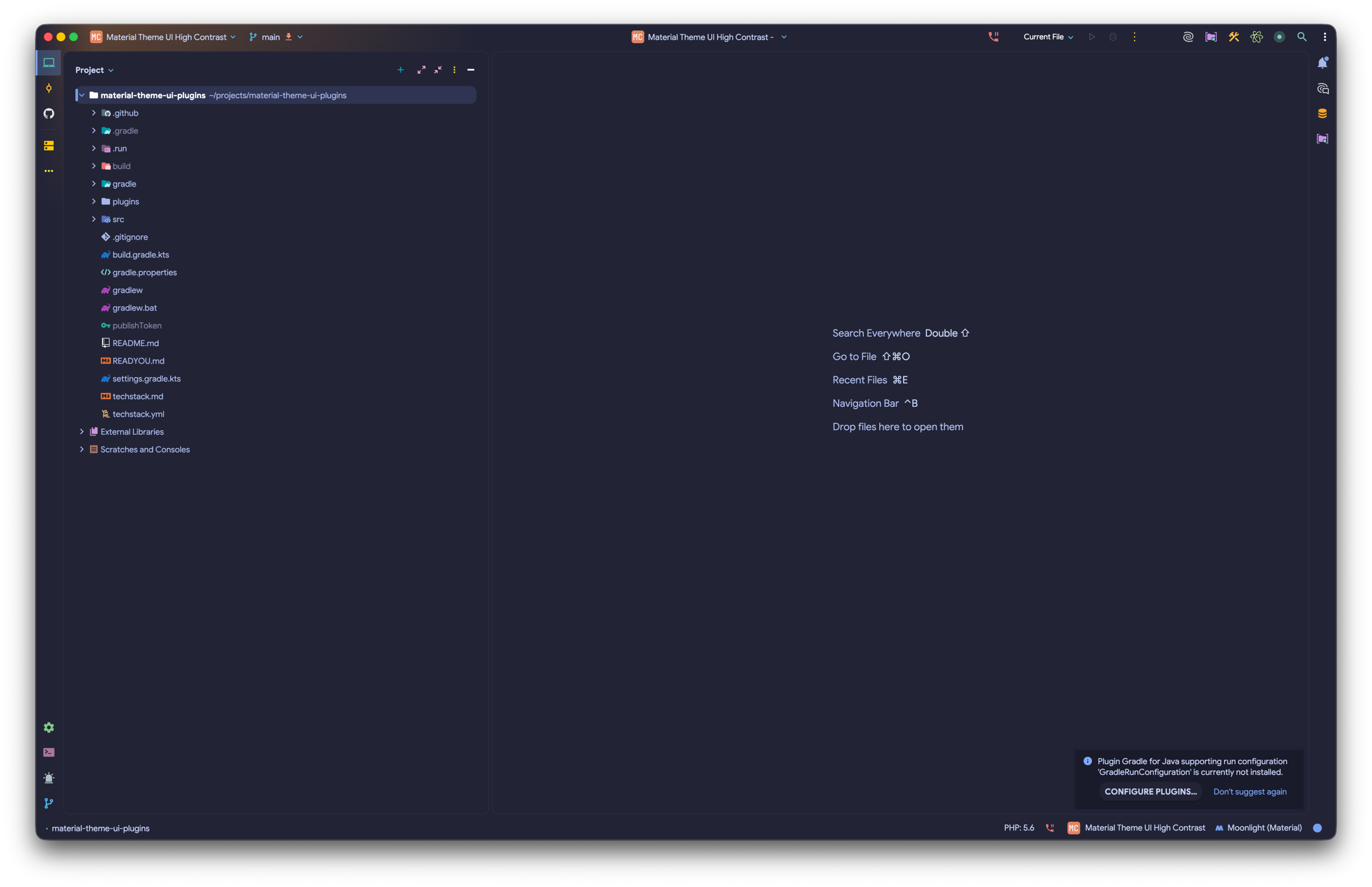
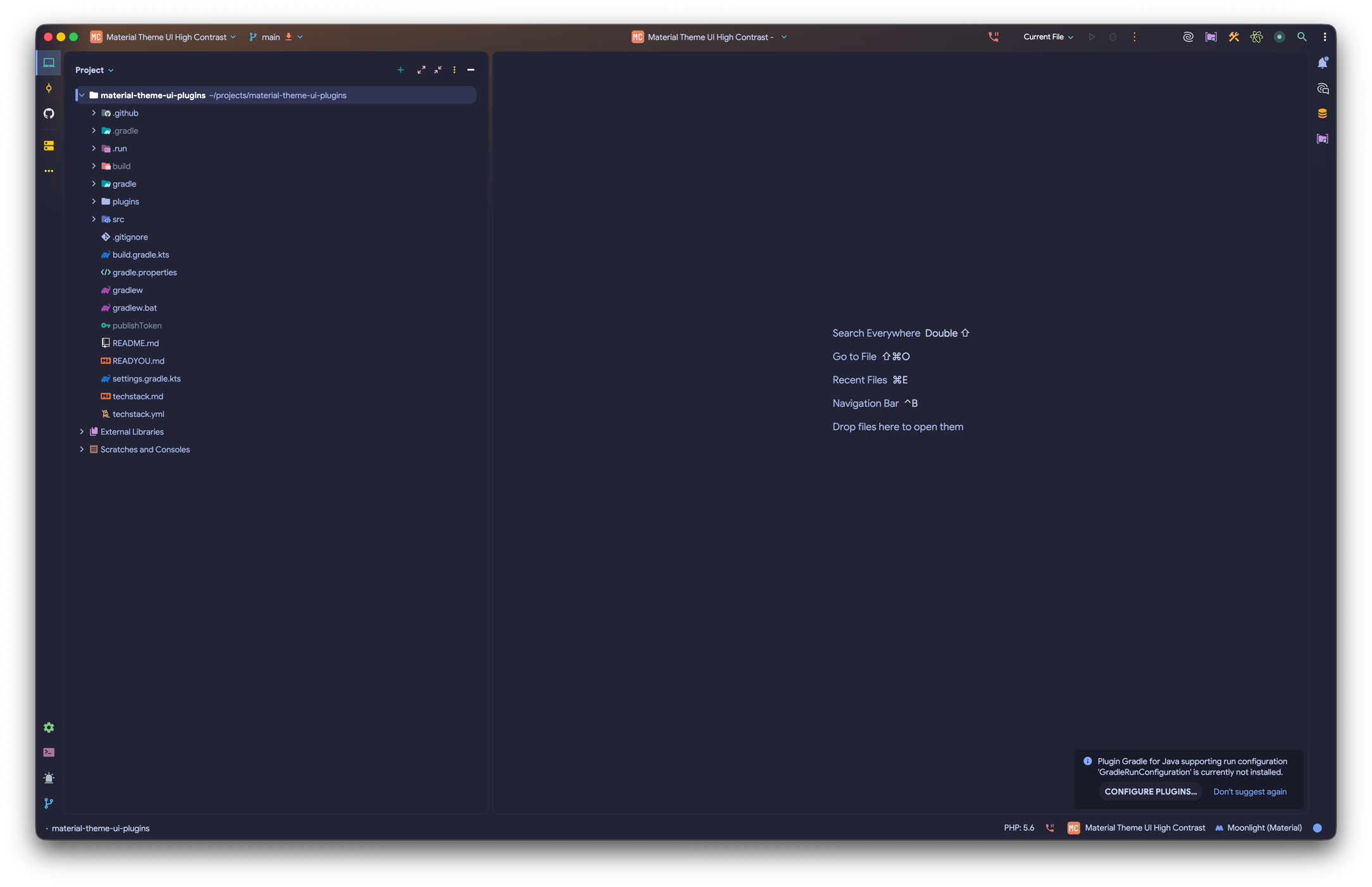
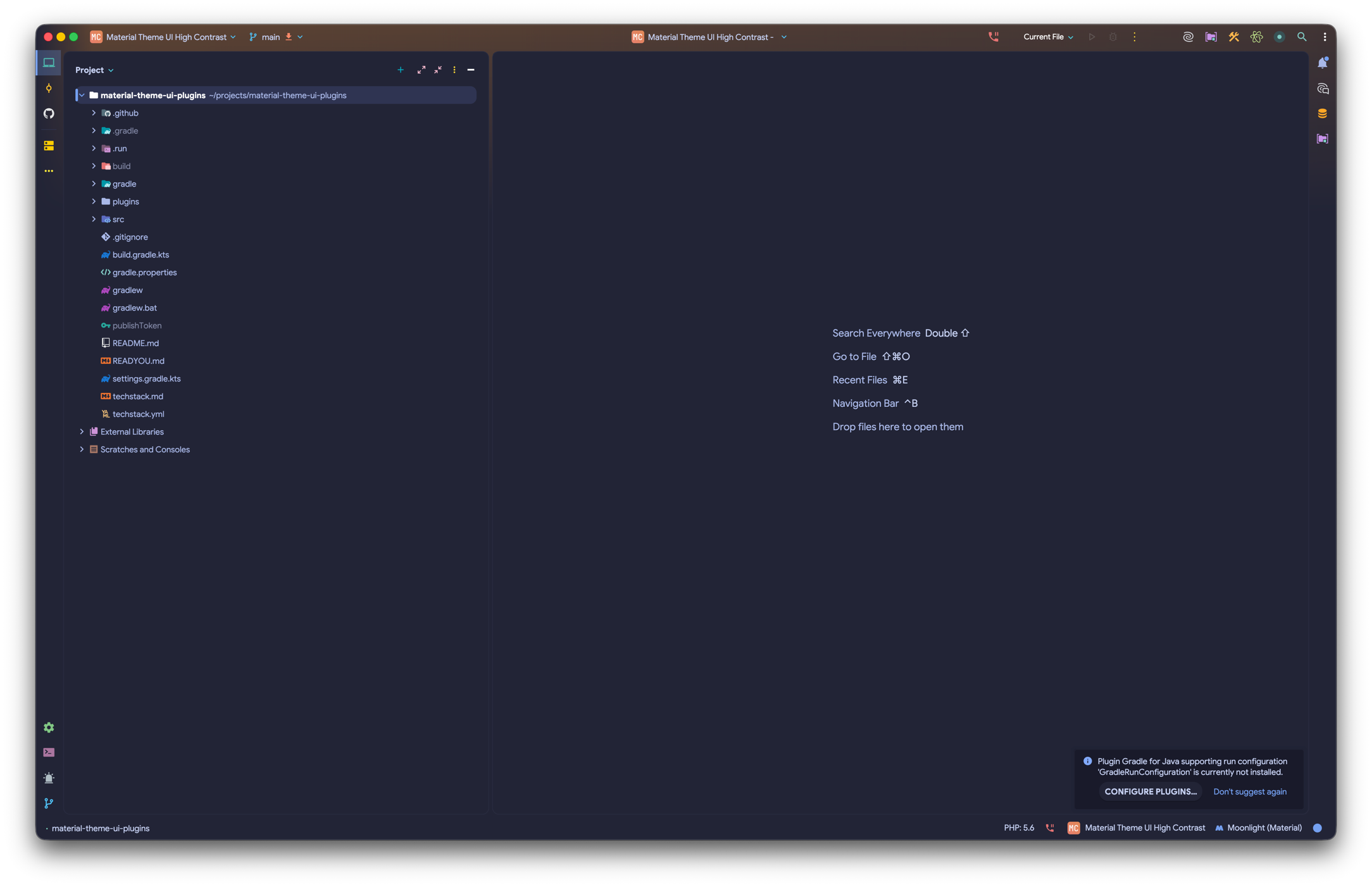
Section titled “Project Widget Settings”This section provides configuration options for the native Project Gradient feature.
Gradient Radius
Section titled “Gradient Radius”Specify the radius of the gradient. The default value is 2000px.
Project Banner
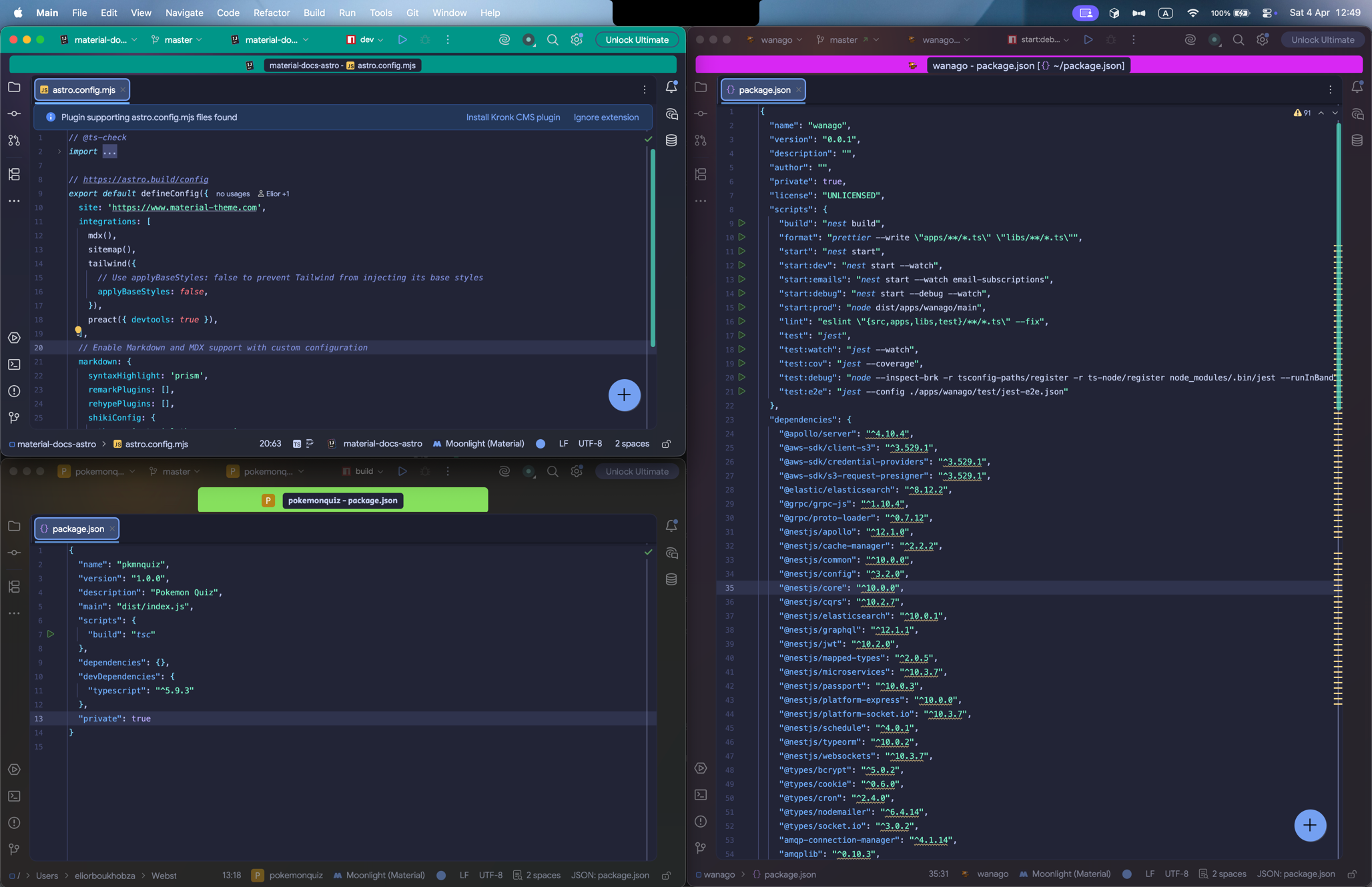
Section titled “Project Banner”The Project Banner displays a customizable colored banner at the top of the IDE, providing information about the active file, project, or module.
The banner color is derived from the same algorithm as the application frame (e.g., generated from the project name).
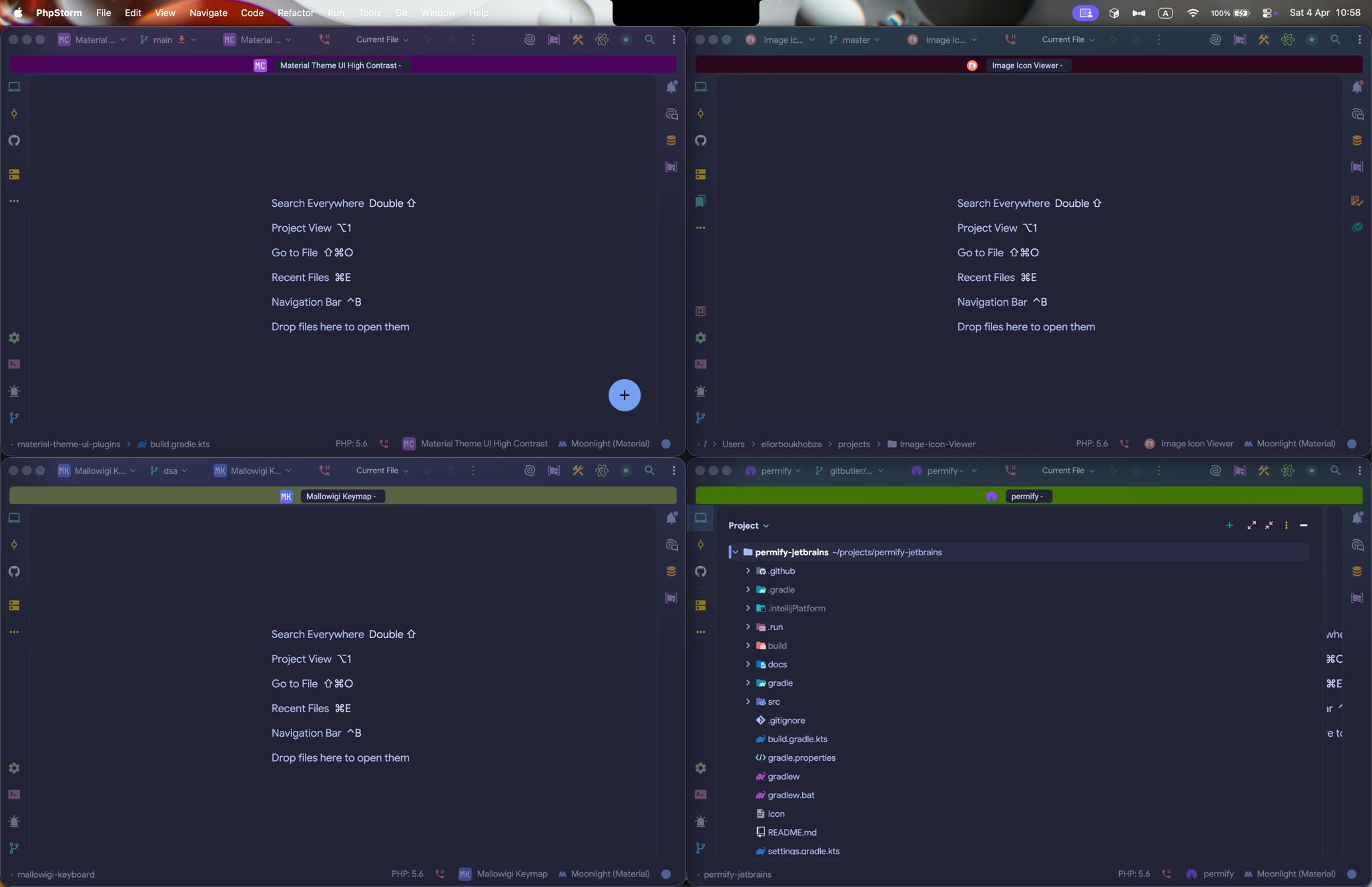
The banner can display various information, including:
- Current opened file
- Path of the current file
- Current project name
- Current module name
- Current file icon
Show Project Icon
Section titled “Show Project Icon”Determines whether to display the project icon in the banner.

Show Project Text
Section titled “Show Project Text”Determines whether to display text in the banner.

Customize Text
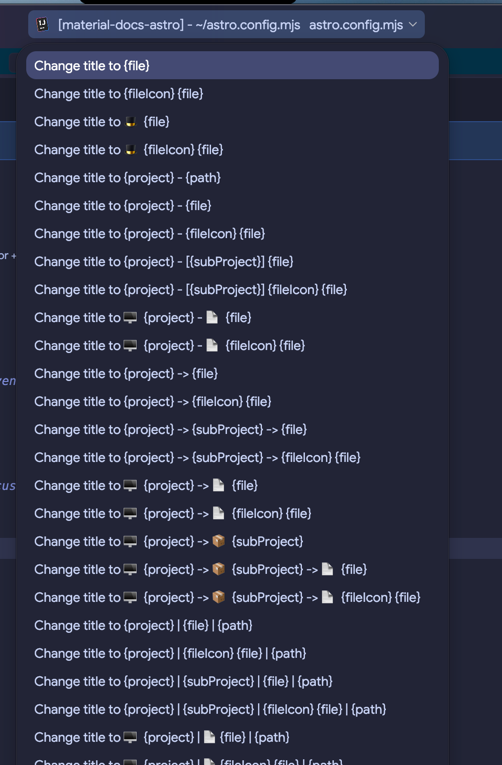
Section titled “Customize Text”Customize the banner text using the following dynamic variables:
{project}: The name of the current project.{subProject}: The project name of the currently opened file (useful for multi-project workspaces).{module}: The name of the current module (for Java and Kotlin projects).{file}: The name of the currently opened file.{fileIcon}: The icon of the currently opened file.{path}: The path of the currently opened file, relative to the project root.{fullPath}: The full path of the currently opened file.

Project Banner Widget
Section titled “Project Banner Widget”The plugin also provides a Project Banner Widget that can be added to the Title Bar, offering the same functionality as the Project Banner without occupying additional vertical space.

To add it, right-click the Title Bar and select Customize Toolbar. Search for the Material Project Title Bar Widget and click Add.
The widget also includes predefined presets for quick customization.
Project Banner Settings
Section titled “Project Banner Settings”These settings customize the appearance of the Project Banner Widget.
Project Banner Width
Section titled “Project Banner Width”Specify a custom width for the Project Banner Widget. Set to 0 to use the full IDE width.
The default value is 800.

Project Banner Height
Section titled “Project Banner Height”Specify a custom height for the Project Banner Widget.
The default value is 30.

Project Banner Font Family and Font Size
Section titled “Project Banner Font Family and Font Size”Customize the font family and size used in the Project Banner Widget.

Per-project Settings
Section titled “Per-project Settings”Like Tab and Tree settings, Project Banner Settings can be configured individually for each project.
This allows you to define unique colors, custom text, or specific fonts for different projects.
Theme
Material
Material (more)
Other
Other (2)
Other (3)